Automatically list fields and score columns in your search results
When using the form designer, you can indicate if a field should automatically be listed as column for the administrators. You can also create summary and/or average columns to sum up responses to multiple choice questions.
Here's how:
1) Access the form designer for a page. For application pages, go to Setup -> Manage Application Pages and then click "edit" on a page you created. For "Per Posting Questions", edit the posting and then flip to the "Per Posting Questions" tab.
2) Click the Options For Result Grid link for a field you would like to automatically list.
3) Change the first drop down to "Automatically." Other options are "They choose" which make the field accessible to the administrators, but not shown automatically and "Never" which hides the field all together so administrators can not list it.
4) If you would like responses from an applicant to be totaled or averaged, create a group. Do this by entering a title for the group in a Prompt field and then...
5) Select one of the Group options as the Field Type.
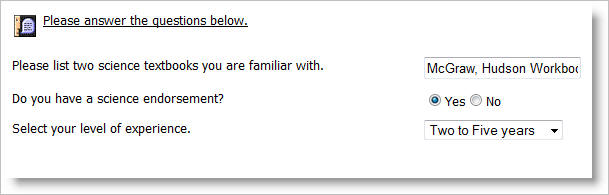
6) To assign a field to a group, go the the Options For Result Grid link and select the new group in the Part of group field. Only numeric results can be grouped. In the example below, the Options For Field Type for the Yes/No field was set so that a Yes response is worth 1 point and a No response is worth zero points. To assign numeric results to text options in a checkbox group, drop down or other multi-select field, prefix an option with a brackets number. The bracketed numbers are not displayed to applicants. Each number must be unique. Up to two decimal digits will be presented to administrators but more may be used to create duplicate end result values. For example, 4.001 and 4.002 will both be calculated to be worth 4 points but may be assigned to different text.
The page above produced...
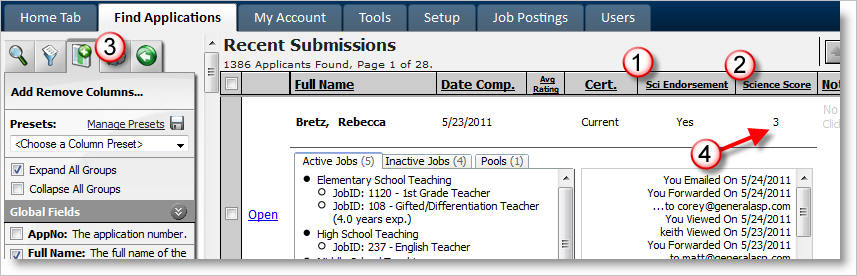
Assuming all of the above has been set up, the fields will automatically be listed for the administrators.
Here's how:
1) Any field tagged to display "Automatically" is listed in the result grid.
2) Groups are always displayed Automatically. In the example below, the applicants are sorted by the Group value.
3) Additional fields can be listed, or fields can be removed by using Add/Remove Columns.
4) You can see that the sample applicant scored a "3" in the Science Score field because they selected "Yes" (1 point) and "Two to Five Years" (2 points).