How to set up trusted sites in Internet Explorer 7
Occasionally, a user's browser security settings will prevent some portion of AppliTrack from running properly. Adding General ASP's sites to your list of trusted sites will circumvent these security settings.
Here's how:
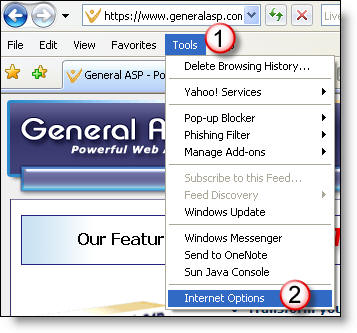
1) In Internet Explorer, Click Tools.
2) Click Internet Options.
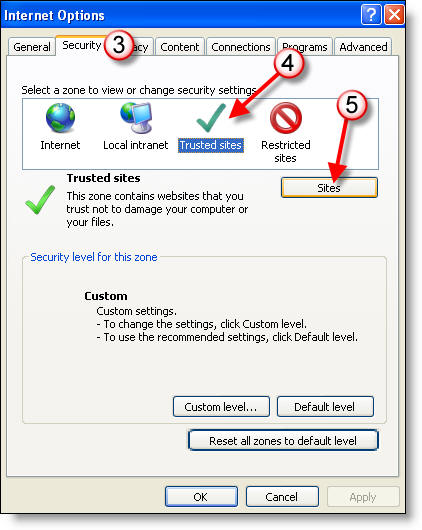
3) In the Internet Options dialog box, click Security, then 4) Click Trusted Sites, then 5) Click Sites.
6) Within the Trusted sites dialog box, add the four web addresses listed below, clicking the Add button after each. Make sure the "Require server verification" box is unchecked. When you are finished, the dialog box should look like the one seen below.
The sites to add: http://*.applitrack.com/, https://*.applitrack.com/, http://*.generalasp.com and https://*.generalasp.com
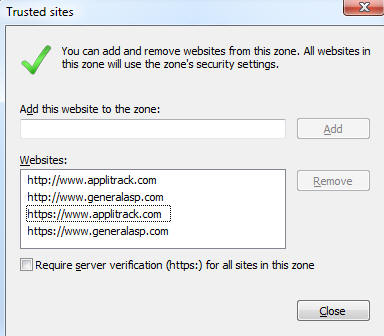
7) Click Close in the Trusted sites dialog box, then OK in the Internet Options dialog box.